 PixCuller
Sort thousands of iPhone and Android photos on your Mac or PC
PixCuller is a full desktop application: it shows your entire iPhone or Android camera roll grouped by trip, compares your photos side by side, and bulk-deletes what's no longer worth keeping — right from your Mac or PC.
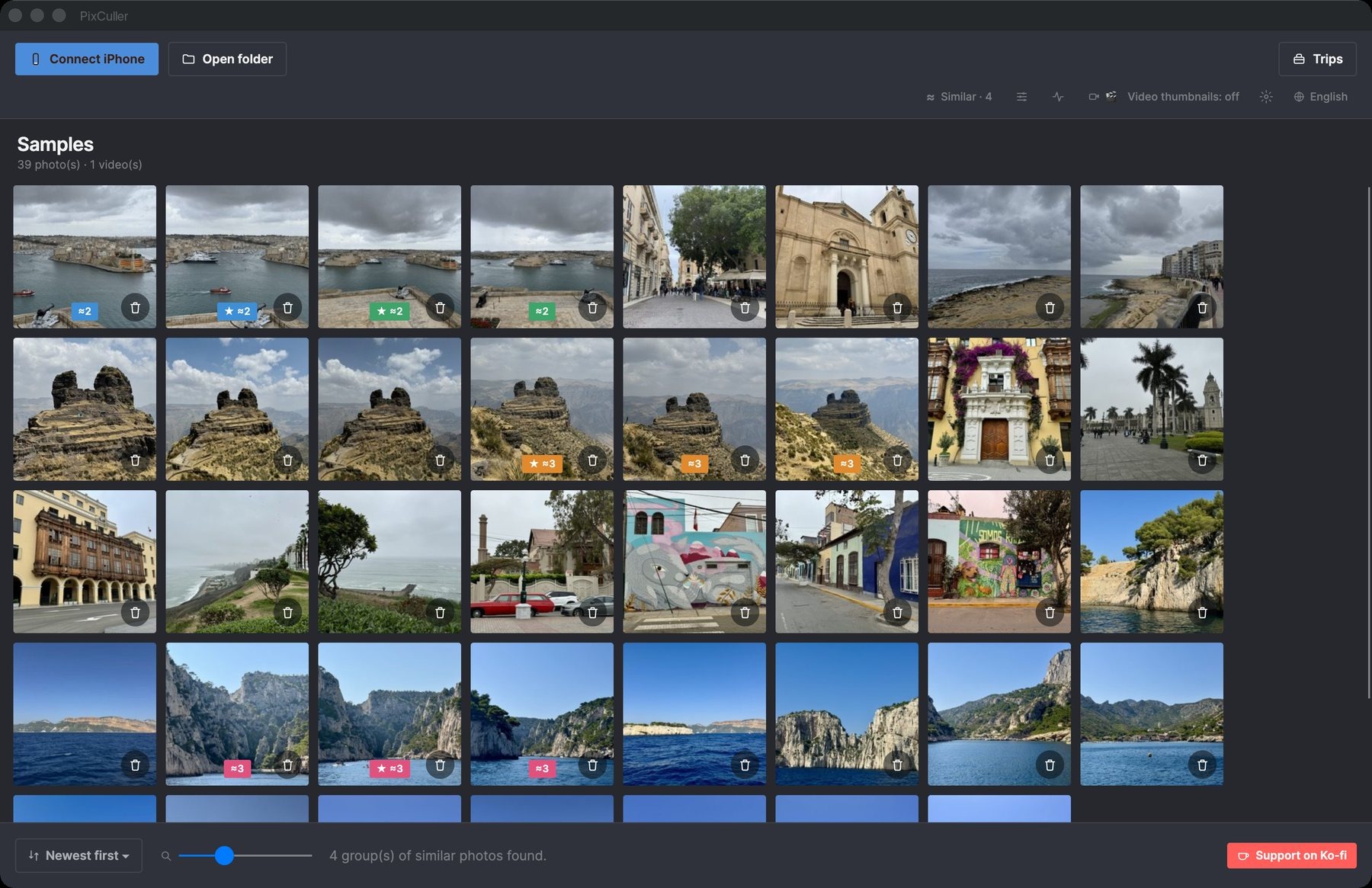
A look at the app
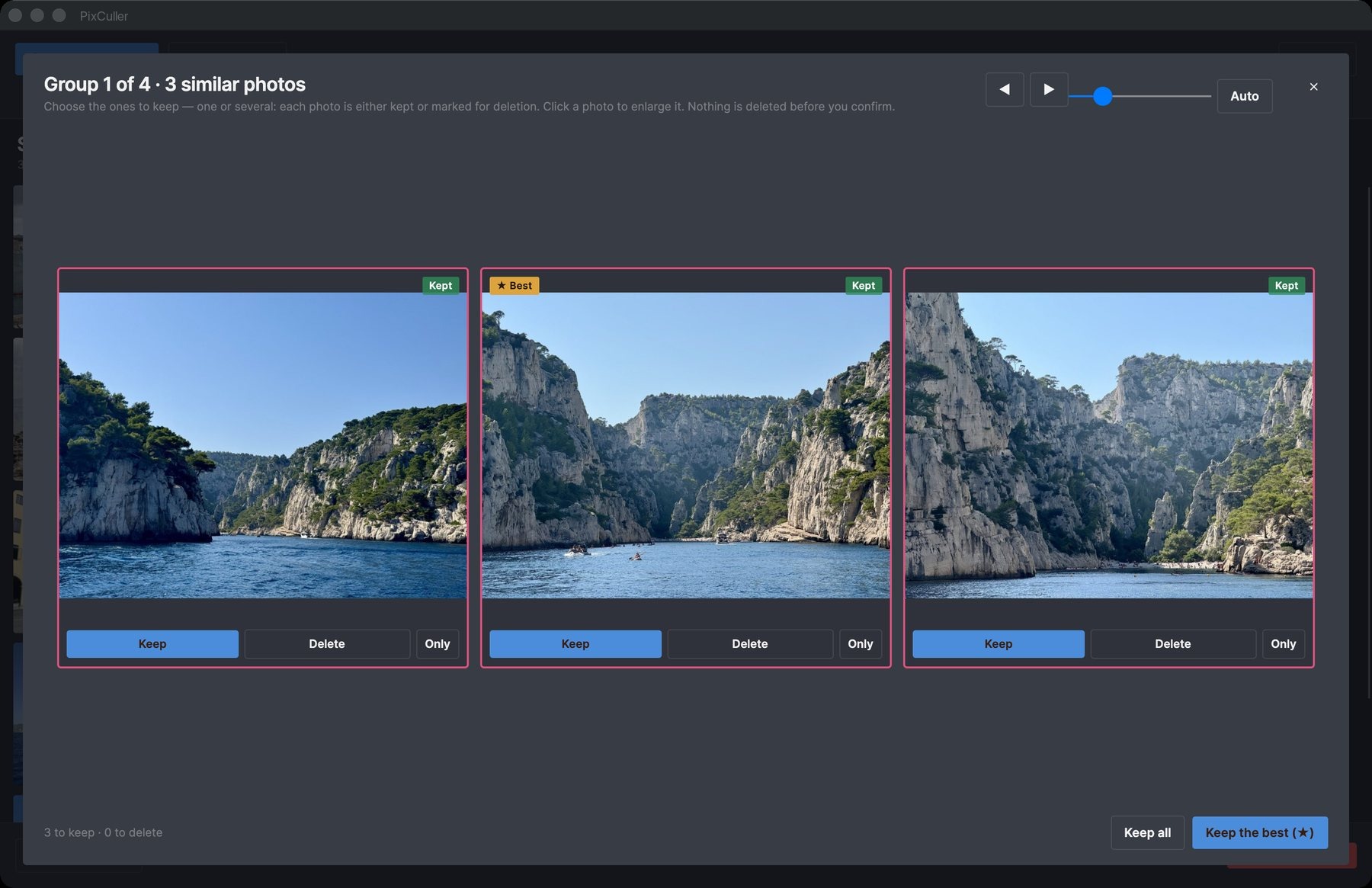
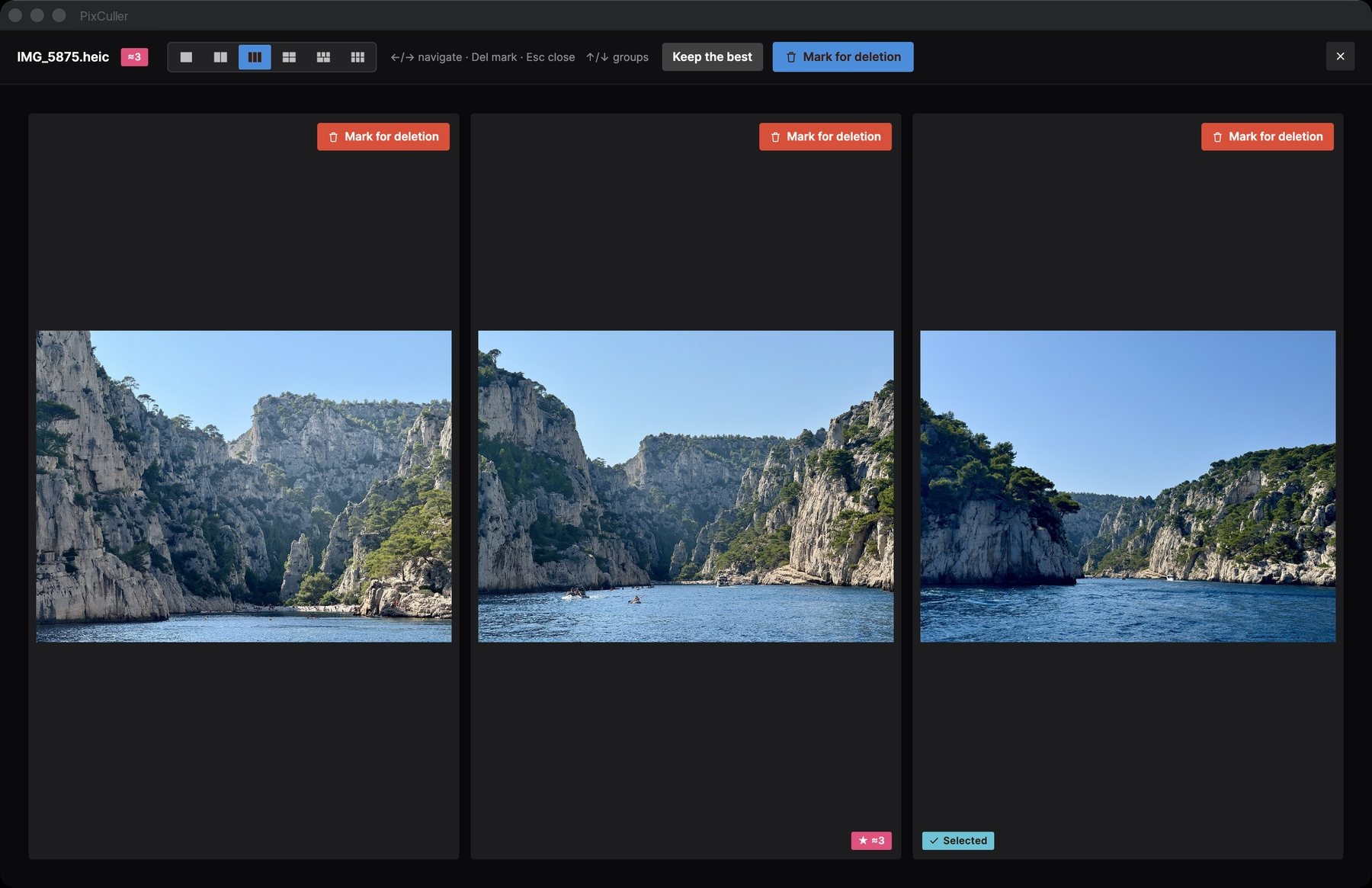

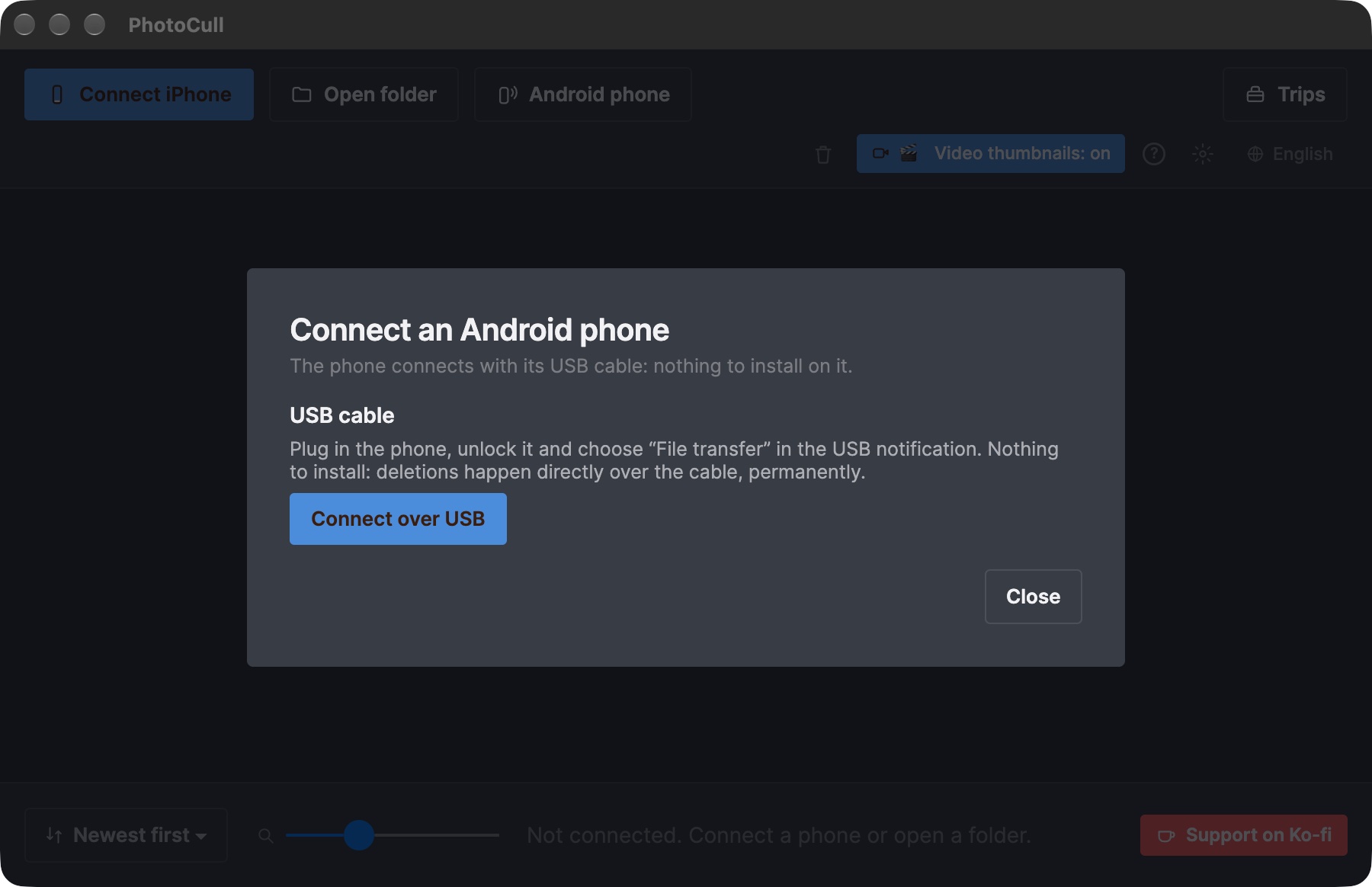
Connect your phone in a minute
At first launch, PixCuller asks where your photos are and walks you through it.
iPhone, by USB
Mac and Windows. Plug in the iPhone, unlock it and tap Trust, then click Connect iPhone. On Windows, install the free Apple Devices app first.
Android, by USB
Windows, and Mac with macOS 27 or later. Unlock the phone, plug it in and choose File transfer in its USB notification, then click Android phone and Connect over USB. Nothing to install on the phone.
A folder
Any folder on your computer or on a drive: click Open folder or drop it onto the window. No phone needed, no daily limit.
What the app does
The "Trips" view
Your entire photo library automatically grouped by trip (time AND location) — spot at a glance which trips take up the most space.
Side-by-side comparison
Show up to 6 similar photos at once to pick the best one — perfect for sorting through bursts and near-duplicates.
Safe bulk deletion
Mark hundreds of photos in a few clicks. On an iPhone or an Android phone, PixCuller deletes them directly over the USB cable and keeps a copy on your computer for 30 days by default; in a folder, they go to the Trash or Recycle Bin. Details and conditions below.
The size that counts
Sort and filter by single-day trip, by excluded place (home, work...), by size — filters built for speed.
Direct connection to your phone
Plug in your iPhone or Android phone with a USB cable: PixCuller reads your camera roll directly, with no cloud and no server involved.
100% on-device
No photo, no GPS location is ever sent anywhere. Place recognition runs entirely locally, with no account and no subscription.
Free, really
No subscription, no in-app purchase, no account.
PixCuller
$0
Browse, compare, sort and delete, on an iPhone, an Android phone or a folder, with no daily limit. Mac and Windows.
PixCuller works on its own: there is no other app to buy or install.
Deleting from your computer: iPhone and Android
iPhone: PixCuller deletes the photos directly over the USB cable, with no daily limit and nothing to buy. It works on any Windows 10/11 PC and on a Mac with macOS 27 or later, with iCloud Photos turned off on the iPhone (when it is on, Apple does not allow this deletion: turn it off in Settings > [your name] > iCloud > Photos, or delete in the iPhone's Photos app). The deletion is immediate and permanent on the iPhone: the photos do not go to “Recently Deleted”. By default, PixCuller keeps a copy of each deleted item on your computer for 30 days, in a “PixCuller Trash” folder in Pictures, so a mistake can be undone by importing the file again. On macOS 26 or earlier, PixCuller shows and sorts the iPhone's photos but cannot delete them: a banner in the app says so, and you delete in the iPhone's Photos app.
Android: PixCuller deletes the photos directly over the USB cable too, on any Windows 10/11 PC and on a Mac with macOS 27 or later, with nothing to install on the phone. The deletion is immediate and permanent (the photos do not go to the phone's trash), with the same 30-day copy on your computer. In folders on your Mac or PC, files go to the Trash or Recycle Bin.
Guides to sort your photos on a computer
How to sort your iPhone photos on a Mac
Sort thousands of iPhone photos on your Mac: what Photos and Image Capture can and can't do, and a faster way to group, compare and delete.
How to sort your iPhone photos on a Windows PC
Sort thousands of iPhone photos on Windows 10 or 11: what the Photos app and File Explorer show, and a faster way to group, compare and delete.
How to sort thousands of photos faster on a Mac or PC
Why sorting photos on a big screen is so much faster than on a phone, and a simple method to go through thousands of photos in one sitting.
How to free up your iPhone from a Mac or Windows PC
Plug in your iPhone, sort photos on a big screen and delete what you don't need, without iCloud and without sending anything online.
How to compare similar photos and keep the best one
A simple routine to choose the best shot among near-identical photos: what to look at, and how to do it quickly on a big screen.
How to find duplicate and similar photos on a Mac
Find exact copies, bursts and near-identical shots in your Mac's photo folders or on an external drive, keep the best and send the rest to the Trash.
How to find duplicate and similar photos on Windows 10 or 11
Find exact copies, bursts and near-identical shots in your PC's photo folders or on an external drive, keep the best and send the rest to the Recycle Bin.
How to sort a big folder of photos, or a whole external drive
Old backups, camera cards, an external drive full of photos: a simple method to sort thousands of files by trip, remove near-duplicates and keep the best.
How to sort your Android photos on a Mac
A Mac has long struggled to read Android phones over USB. How to sort thousands of Android photos on a Mac with macOS 27 and delete what you don't need.
How to sort your Android photos on a Windows PC
Sort thousands of Android photos on Windows 10 or 11: what File Explorer and the Photos app show, and a faster way to group, compare and delete.
How to free up your Android phone's storage from a Mac or PC
Connect your Android phone by USB, sort photos on a big screen and delete what you don't need, without paying for Google One and without uploading anything.